Guide
How it works
A particle system is a small chain of nodes, read from left to right. An Emitter says where particles are born. Forces say how they move. Appearance says how each one is drawn. The Particle System node runs the simulation on the graphics card, at every frame, for millions of particles. Its picture then goes through the Effects node (exposure, trails, depth of field, lighting, glow) and ends in the Render node, which writes the final images. Nothing is baked: change a value and the particles react at once.
A tree can hold several systems. Each one has its own emitter, forces, look and effects, and they all end in the same Render node, which layers them in one image.
Your first system
- Open a Node Editor and choose the GPU Particles editor type. Press N to open the sidebar, tab GPU Particles.
- Click Preset and pick one (or Open the Demo Scene on an empty tree). The nodes are created and the simulation starts in the 3D viewport.
- Click a node: all its settings appear in the sidebar, under Node Settings. Drag a value: the particles follow in real time.
- Add a force: in the Forces node, Add Force, or Add > Forces in the menu and connect its Flow output to the system's Flows.
- In the Render node, Render Image or Render Animation writes the result to disk at the scene's resolution.
Reading the nodes
- Compact nodes (the default): a node shows what is connected to it and a Settings (12) row, with the number of settings it folds. Everything else is in the sidebar, under Node Settings, for the selected node. Click the Settings row to unfold the settings on the node itself; the pin next to a setting in the sidebar keeps it on the node. The Nodes row at the bottom of Node Settings switches to Simple or Full.
- The Effects node holds every effect of a system. Each effect is a foldable section with an on / off checkbox; Add Effect lists the ones not in the node yet.
- The Forces node stacks several forces, the same type as many times as you want. Its output is their sum.
- Colours of the sockets tell what travels in a link: a number, a vector, a colour, particles (Emitter), a motion (Flow), a look (Appearance), an image (Render). Only sockets of the same kind connect.
- The ? button of the sidebar, or F1 over a node, opens that node's page of this documentation.
Making values move
Any number, vector or colour input can be driven instead of typed. Three ways:
- Keyframes: hover the value and press I, as anywhere in Blender. The value follows the timeline, in the viewport and in the render.
- Control nodes: Audio (the level of a sound band), Hand (a hand in front of the webcam), Time, Wave (LFO), Noise, ADSR Envelope. Connect their output to the setting.
- Particle Data: Particle Info and Get Attribute give a value that differs for each particle (its age, its speed, its position). Pass it through Math or Map Range, then into a force or the Appearance.
Speed and memory
- The Diagnostic line of the sidebar lists what is wrong or heavy in the set-up, each with a one-click fix.
- The particle count is the main cost. Work at 1 million, render at 10.
- The rewind history (Timeline) keeps the last seconds of the simulation on the graphics card: turn it off on heavy scenes if you do not use it.
Rendering
The Render node writes PNG, EXR or MP4. It restarts the simulation (or continues from the viewport), steps it at the scene's frame rate and draws each system at the final resolution, with supersampling. Background chooses what is behind the particles: nothing (transparent), the scene's final render, or the viewport as you see it. For identical renders from one run to the next, bake the cache of a system (sidebar > Cache) and render from it.
Output
The two nodes every tree has: the Particle System simulates, the Render node writes the final images.
Emitters
Where particles are born: a plane, a sphere, the surface of an object, a curve, a text, an image.
Forces
What moves the particles. Connect any number of them to the system's Flows: they add up.
Look
How a particle is drawn: colour, size, shape, and the lines between neighbours.
Effects
What happens to the image of a system after the particles are drawn: exposure, trails, depth of field, lighting, glow.
Control (Hand / Audio / Time)
Numbers that change over time: the sound, a hand in front of the webcam, a clock, a wave. Plug them into any setting.
Particle Data
What each particle knows about itself (position, speed, age): use it to vary a setting from one particle to the next.
Math / Utilities
Small operations to shape a value before it reaches a setting.
Collision
Surfaces the particles cannot cross.
Groups
Several nodes packed into one, to reuse a set-up.
Presets
A preset builds a complete system in one click (sidebar > Preset). A good way to learn: load one, then read the pages of its nodes.
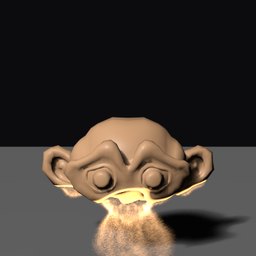 Dust DisintegrationYour object crumbles into coloured dust from the bottom up, its material dissolving with a glowing edge (keyframed: press Play)
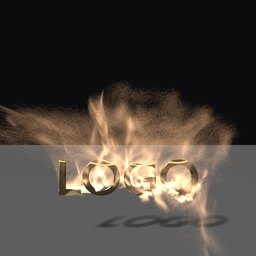 Object to LogoYour object turns to dust that flies over and builds a logo text (keyframed: press Play). Edit the text object to put your own
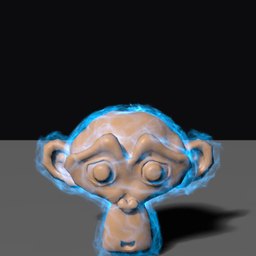 Energy AuraGlowing particles crawl over the surface of your object and light it up
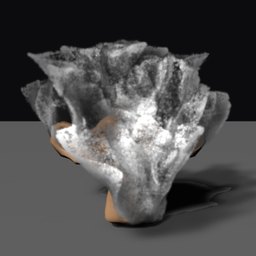 Smoke & ShadowsYour object smokes: the smoke rises off its surface, shadows itself and casts its shadow on the object and the scene (Cloud Shadows)
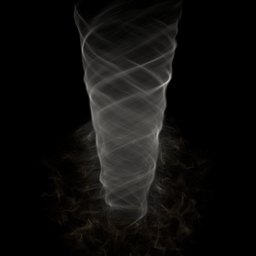 TornadoA dusty twister rising from the ground and spinning
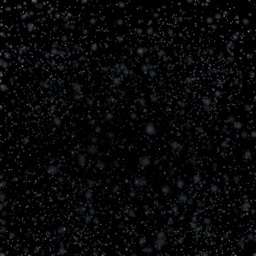 SnowfallSnow falling slowly in depth, the near and far flakes melting into bokeh (Depth of Field)
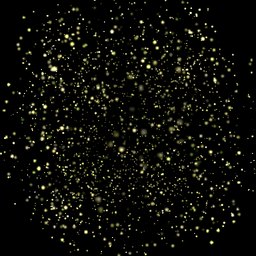 FirefliesA few hundred glowing motes wandering in the night, pulsing on and off
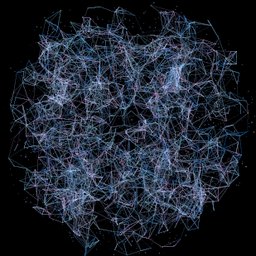 ConstellationA slowly drifting network of stars joined by lines (plexus)
 Text LogoThe particles form a text, the music makes it shake (edit the text in the Shape Target node)
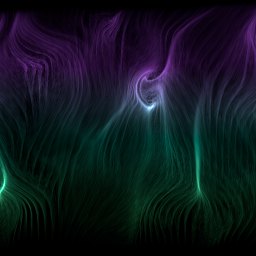 AuroraNorthern lights curtains rising slowly, the hand height raises the wind
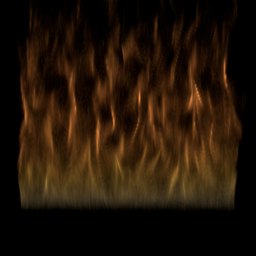 InfernoA curtain of flames rising from the bottom of the frame, the music fans the fire
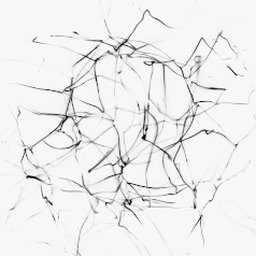 Ink FilamentsA web of thin ink filaments joined at knots, drifting and slowly reshaping, black on paper
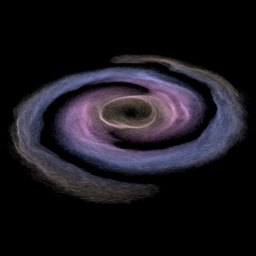 GalaxyA spiral galaxy, tilted toward you: a bright core and two arms of stars (edit the arms curve)
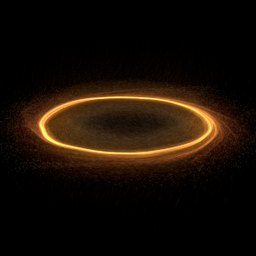 Black HoleAccretion disc spiralling into a singularity, pinch to feed it
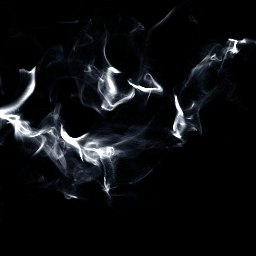 MurmurationA swirling flock of starlings that wanders across the sky and follows your hand
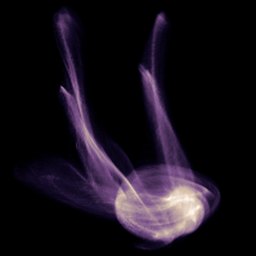 Orbiting ClustersA calm cloud breaks up into clusters that circle each other and merge, pulling out spiral arms: the bass speeds the orbits up
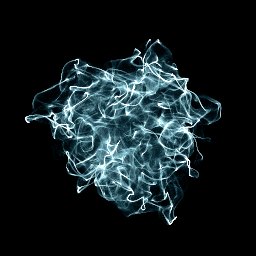 Organic SwarmThe particles attract each other into living webs and membranes: open your hand and they swarm, the bass makes them breathe
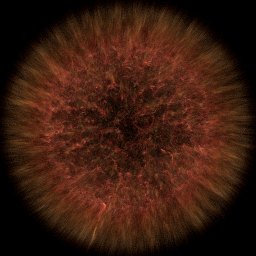 Pulse CoreA sphere of glowing filaments that breathes with the bass, bursts on every kick and pulls itself back together (no music: it breathes and bursts on its own)
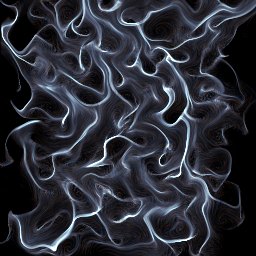 MarbleFine marble flow (streaks, turbulence, relief), the hand stirs it
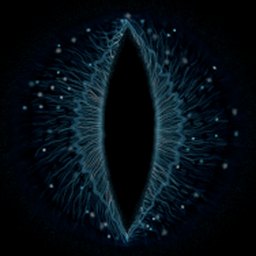 Vortex EyeCat / dragon eye made of particles: the hand moves the eye and opens the slit pupil, the kick makes it pulse
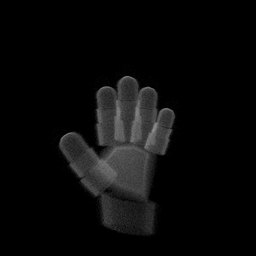 Particle HandYour hand (webcam) rebuilt from particles, glowing fur effect
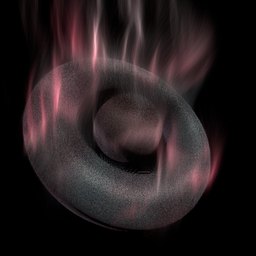 Depth MediaImage / video / webcam in relief (AI depth) that scatters into filaments, open hand = dispersion